twiinworkspace New Menu Navigation Update
Clients
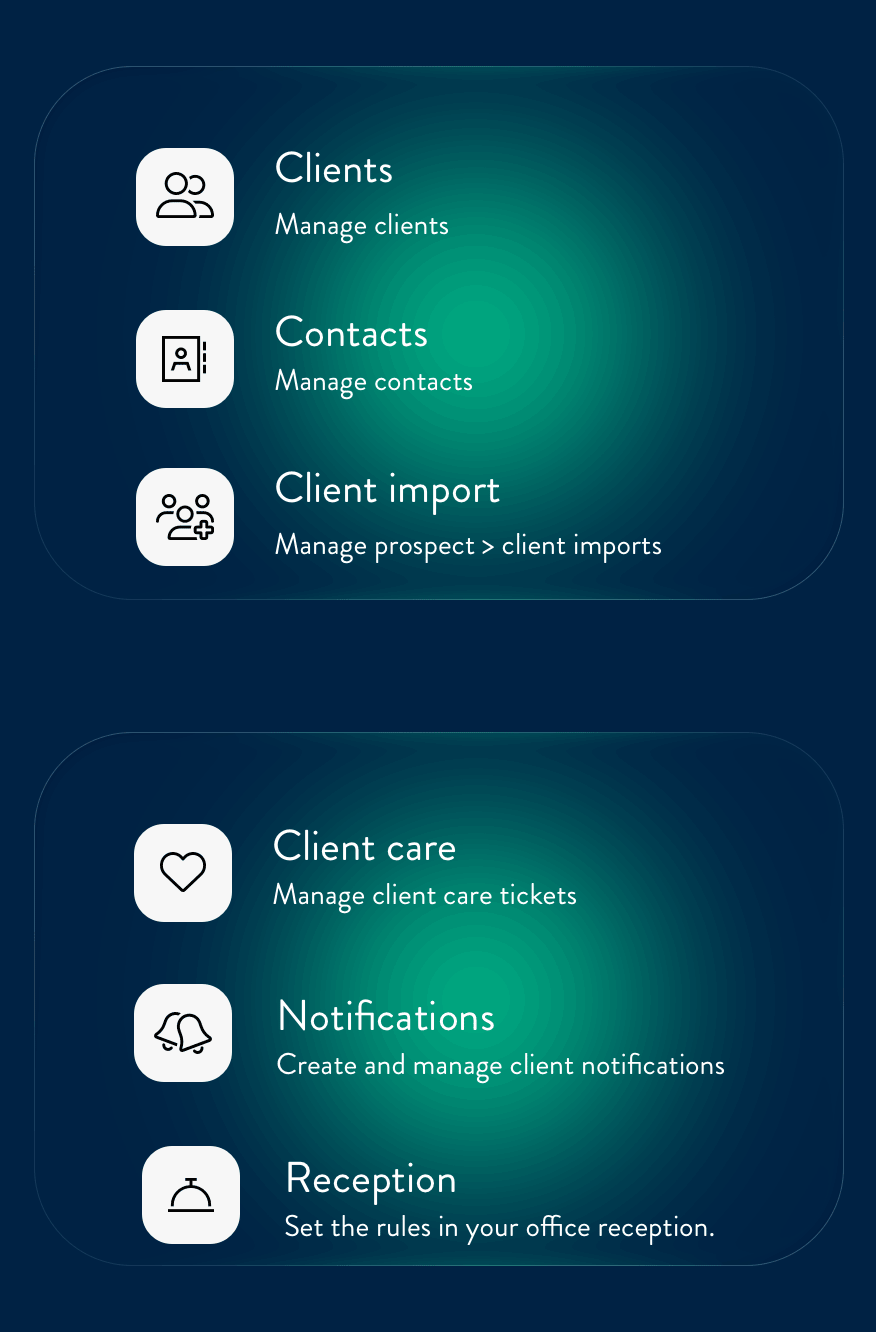
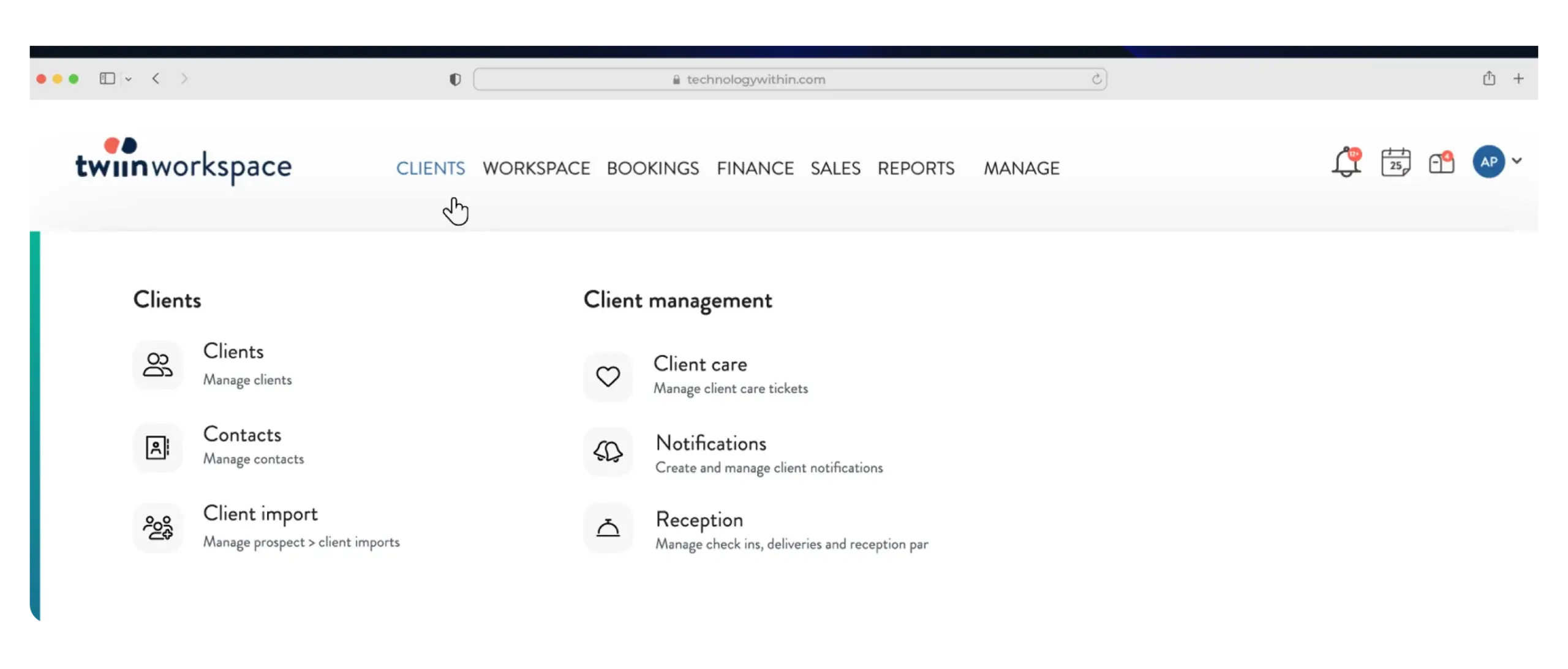
Under the Client menu, you will find:
- Clients
- Contacts
- Client import option (moved from notification bar) - import successful leads from twiinsales
Also located here are other Client Management features (moved from Utilities):
- Client Care - manage your client and building tickets
- Notifications - send out notifications to clients
- Reception - manage Client Check Ins and Deliveries
Workspace
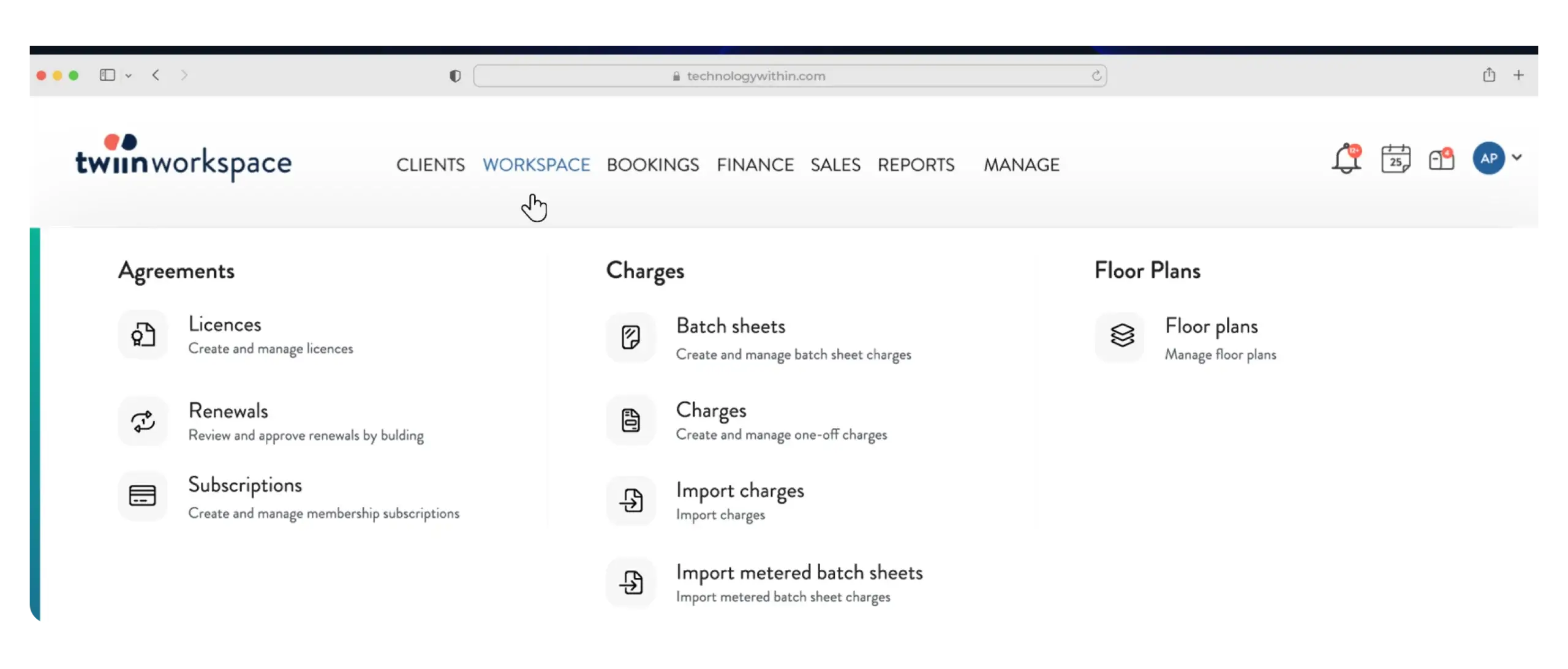
All the fixed and recurring charges have been grouped together under the new Workspace menu option. Click here to find:
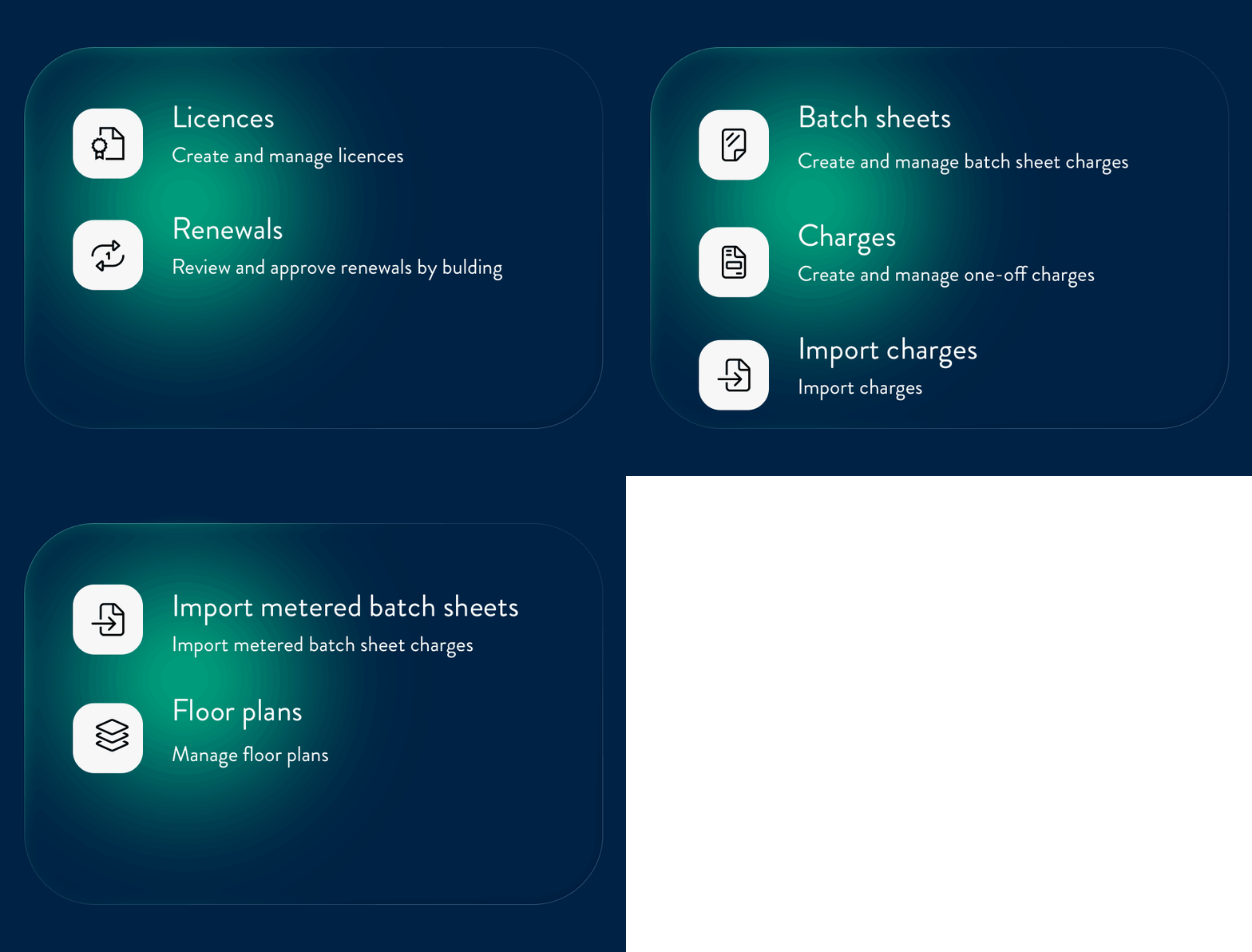
- Agreements (moved from Agreements) - Licences and Subscriptions can be managed here
- Renewals (moved from Agreements) (if enabled)
- Batch sheets (moved from Charges) - one-time batch charges
- Charges (moved from Charges) - one-time charges
- Import charges (moved from Utilities) - import one-time charges
- Import metered batch sheets (moved from Utilities) (if enabled) - import one-time metered batch charges
- Floor plans (moved from Manage) - upload, map, and manage floor plans
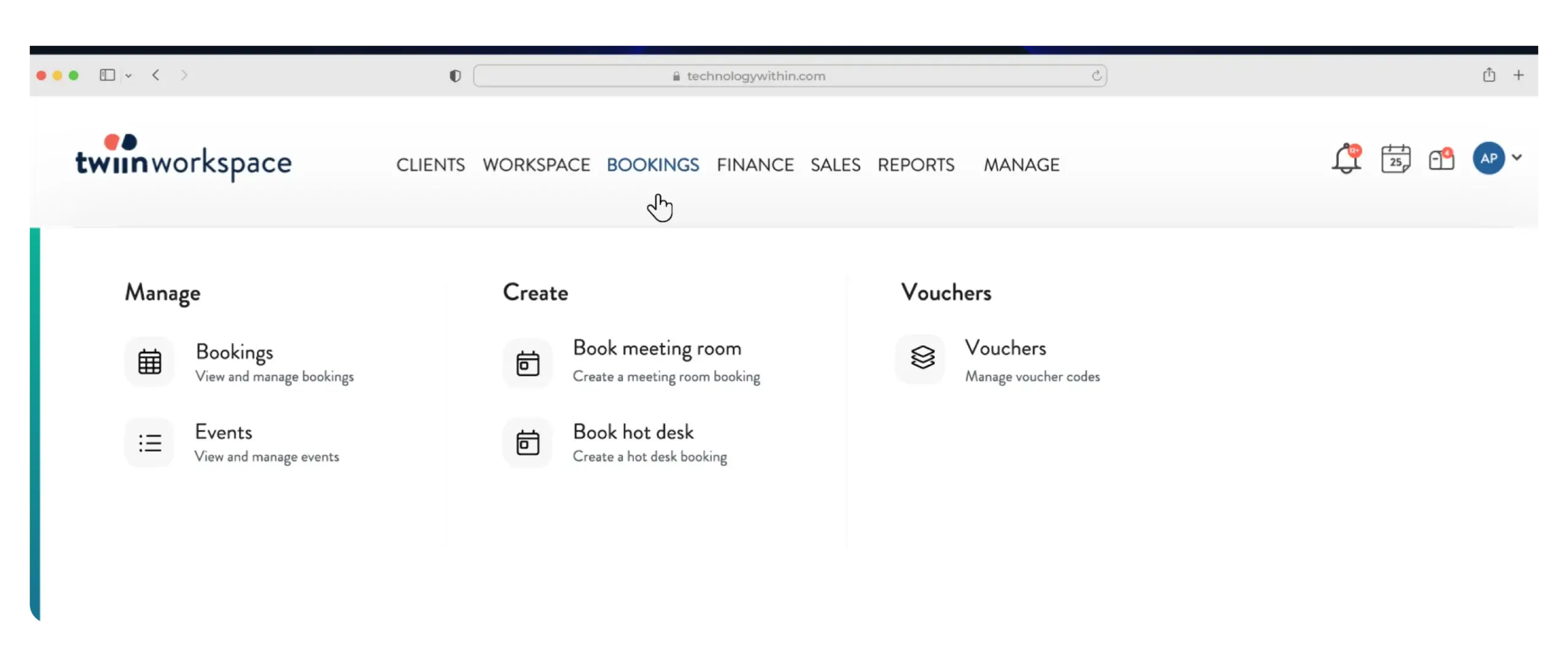
Bookings
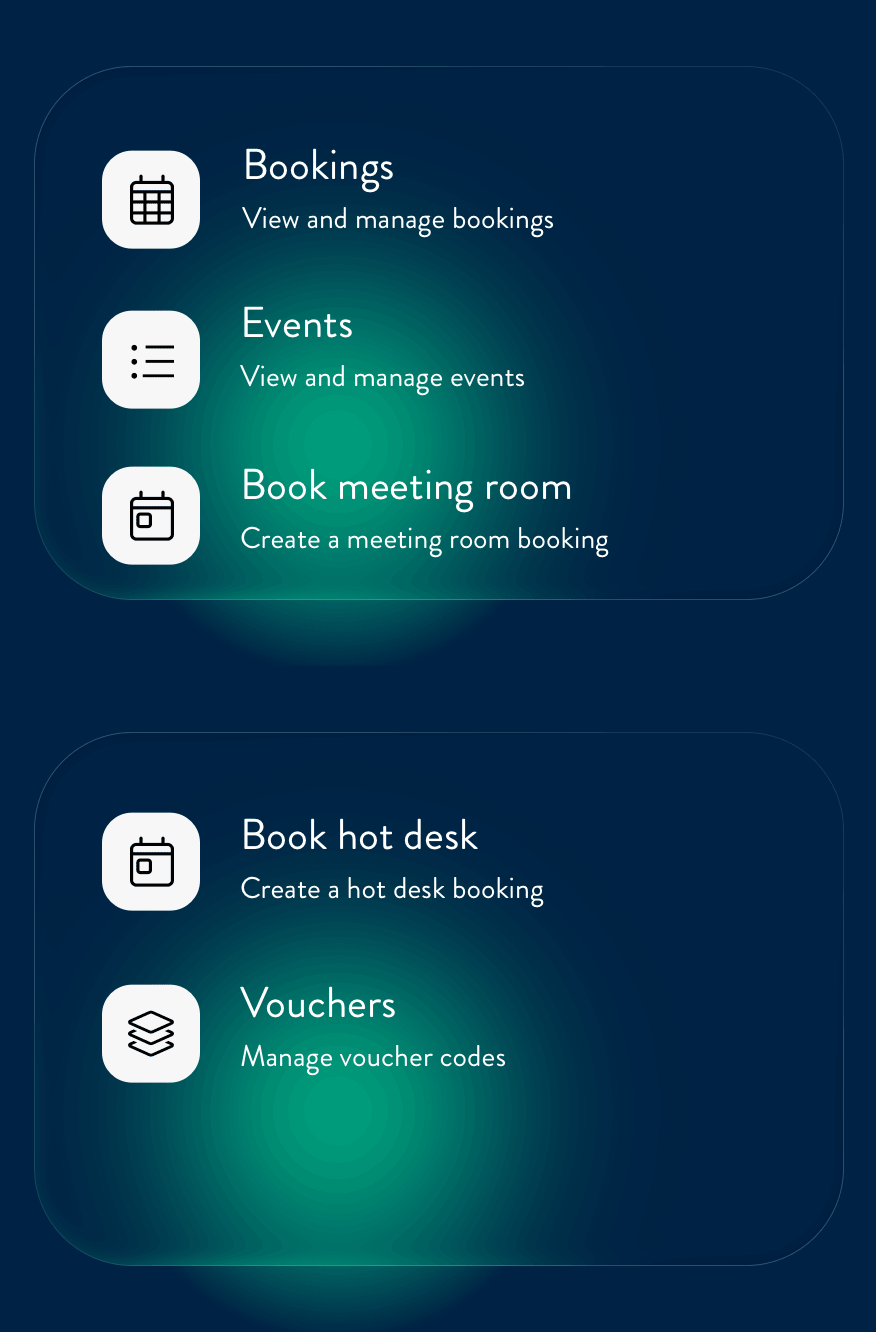
Under the Bookings menu, you will find:
- Bookings - view and manage all existing bookings
- Events (if enabled) - view and manage events
- Book meeting room - create a new meeting room booking
- Book hot desk - create a new hot desk booking
- Vouchers (moved from Manage) - manage and create voucher codes for bookings
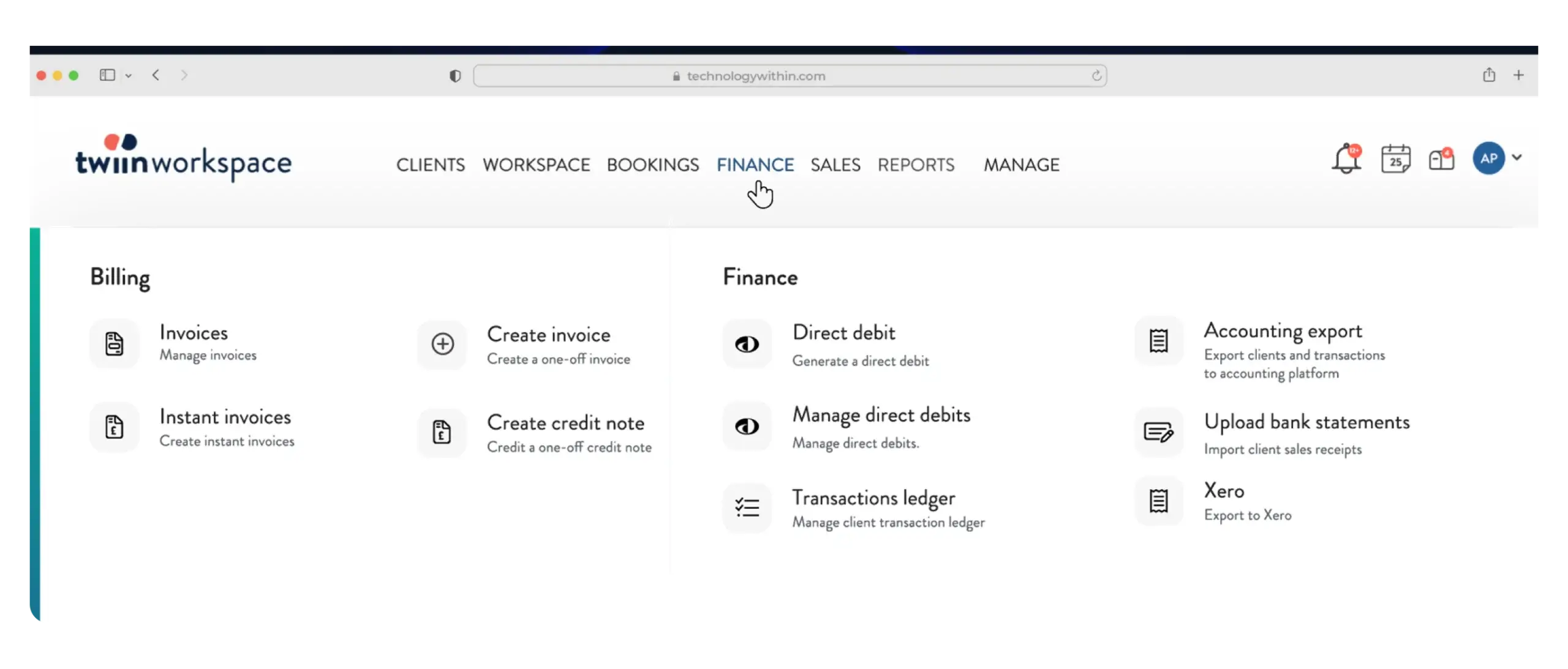
Finance
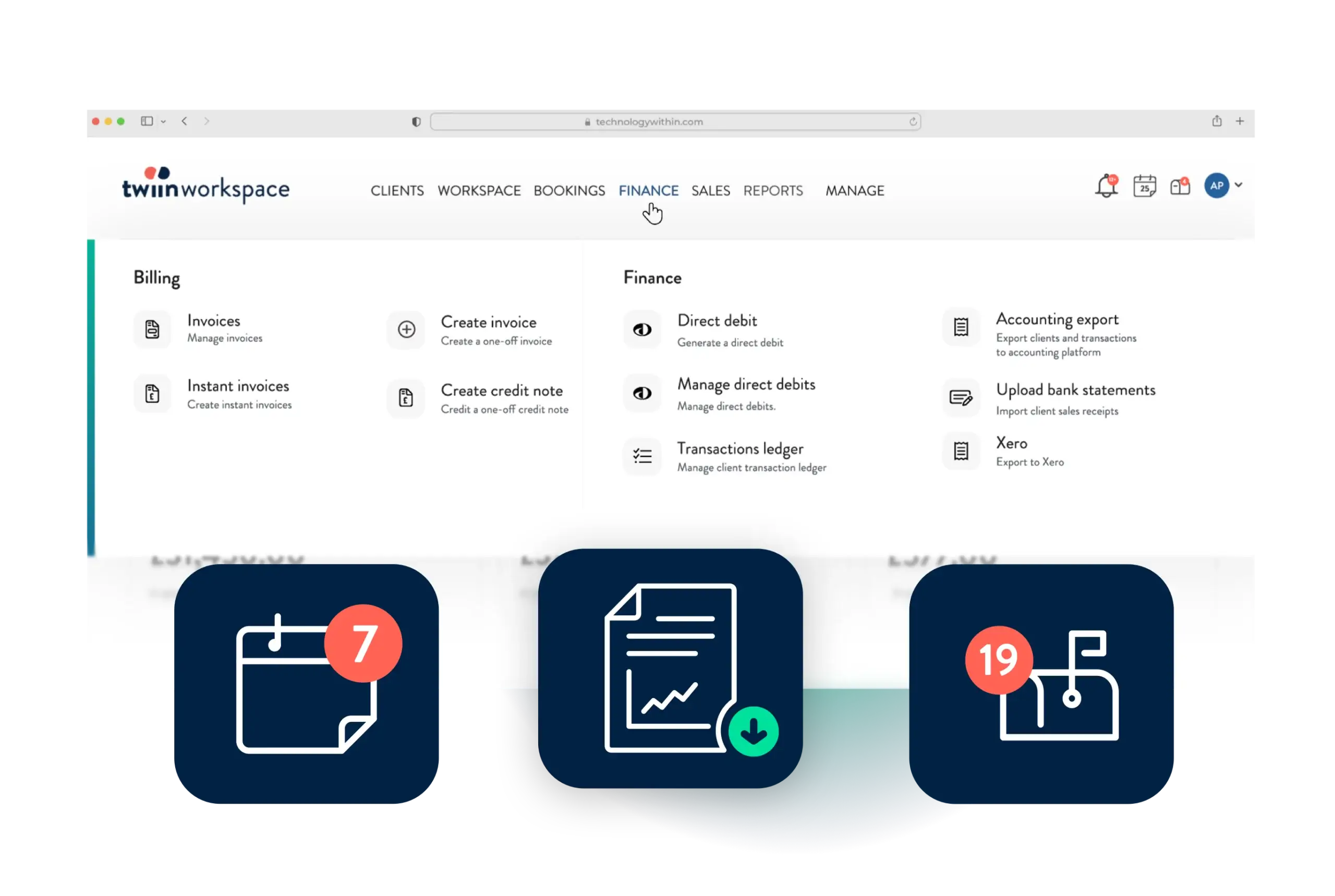
All things billing and finance have been grouped together here.
Under the Billing heading, find:
- Invoices - view and manage all existing invoices
- Instant Invoices - create an instant invoice from existing charges outside of your bill run
- Create invoice - create a one-time invoice, not from existing charges
- Create credit note - create a one-time credit note, not from an existing invoice
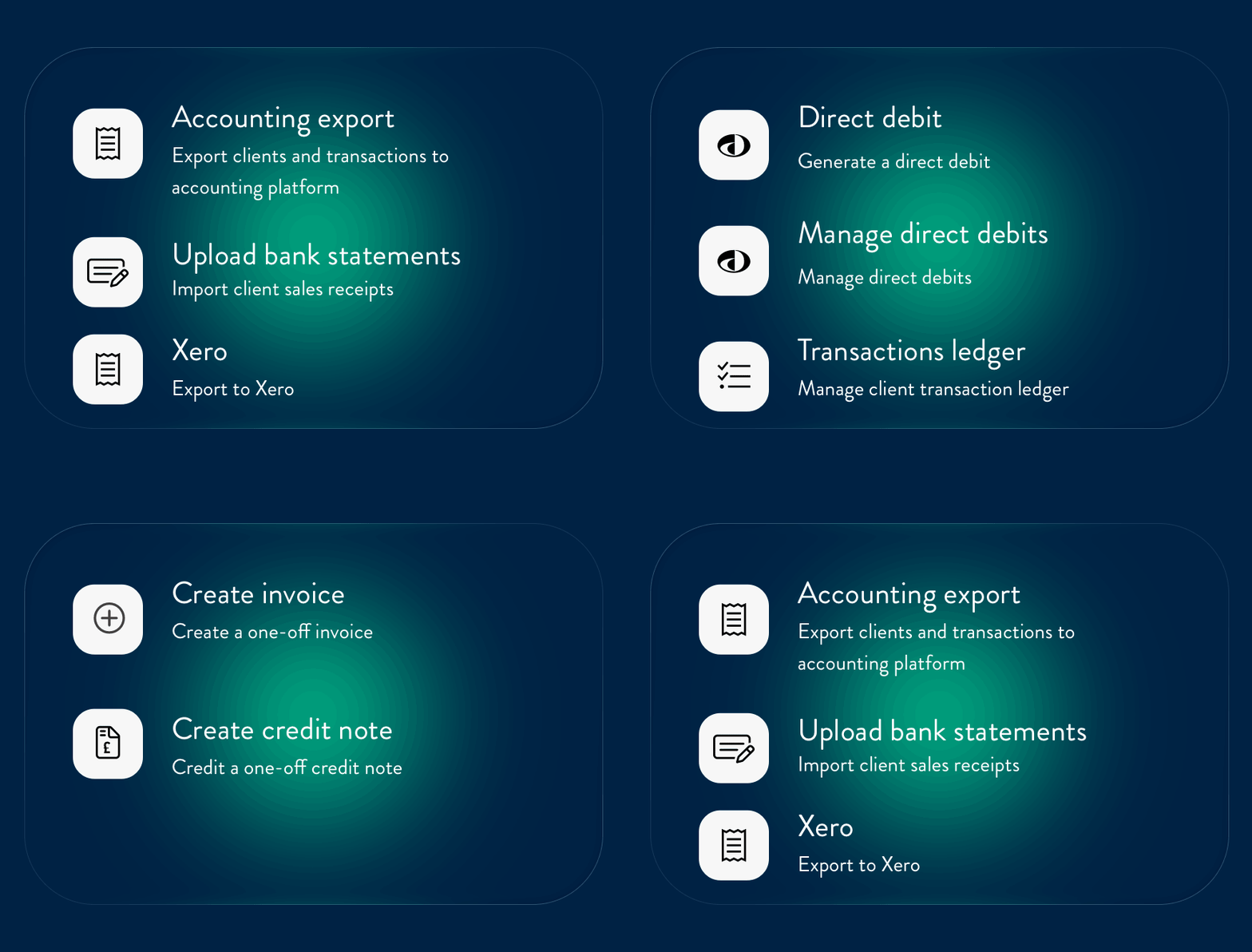
Under the Finance heading, accounts users will find:
- Direct debit - generate a new DD run
- Manage direct debits - manage previous DD runs
- Transaction ledger - manage payments, allocations and debtors
- Accounting export - find your accounting export here
- Import bank statements (moved from Utilities) - import bank statements and auto-allocate receipts to invoices
- Xero / Sage 50 API exports (moved from Utilities) (if enabled) - access your export function here
Sales
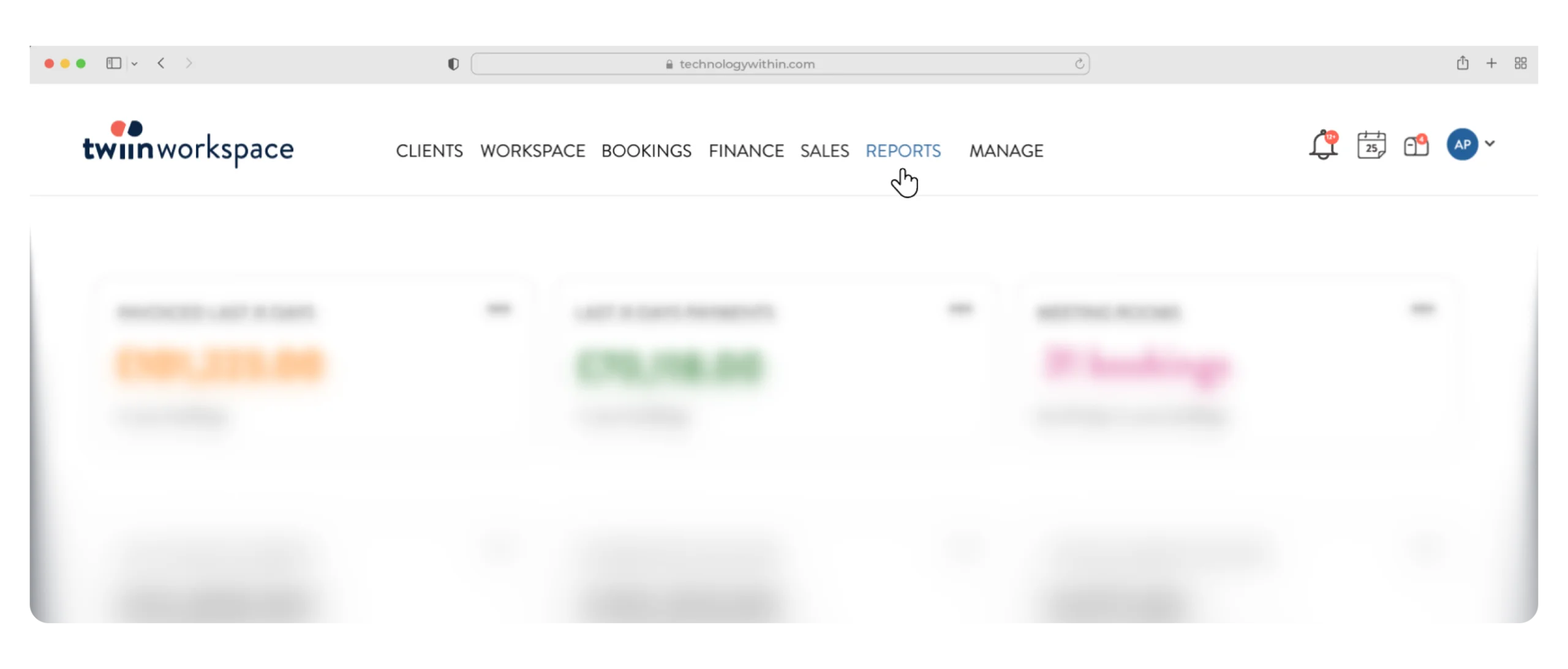
Reports
Manage
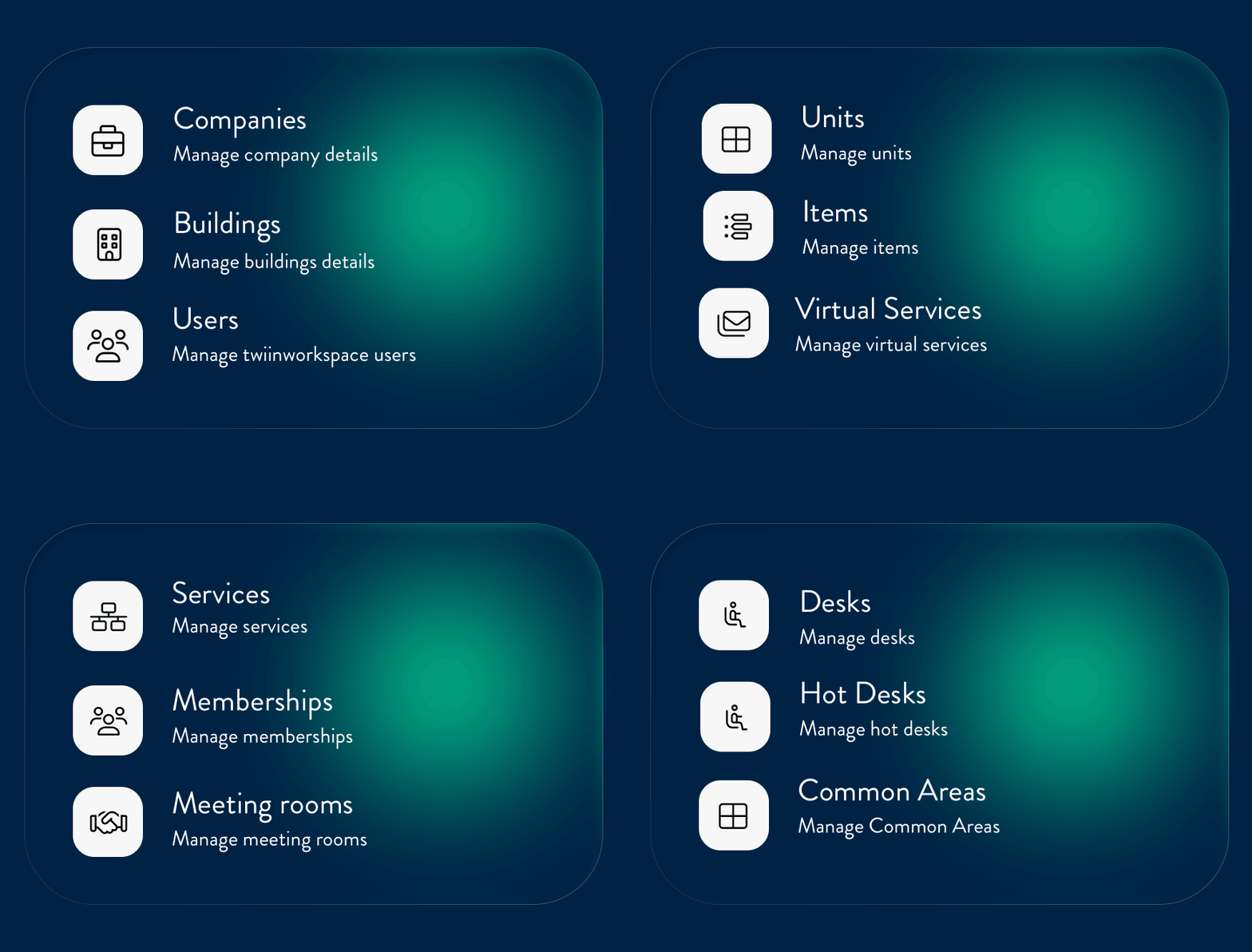
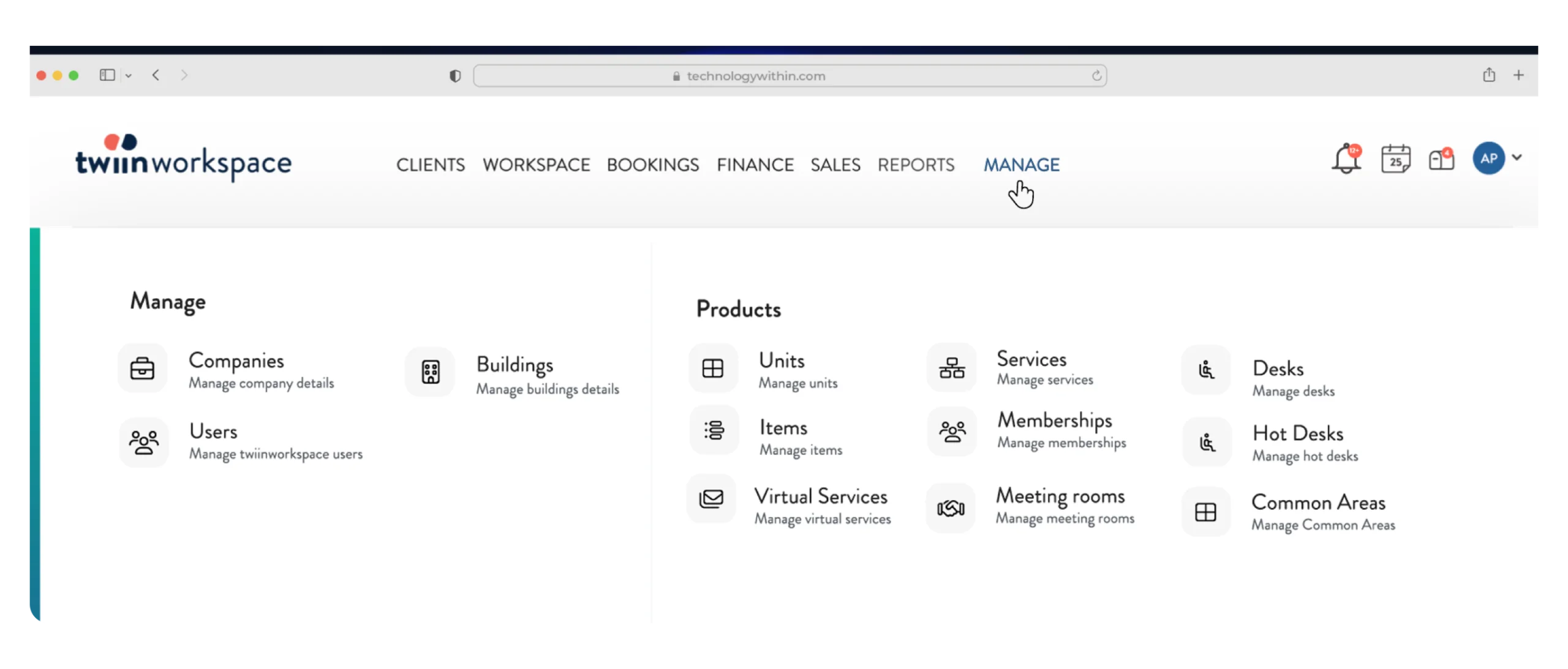
The manage menu gives you access to manage:
- Companies and Buildings pages
- Users - manage your platform users
- Products - manage your inventory
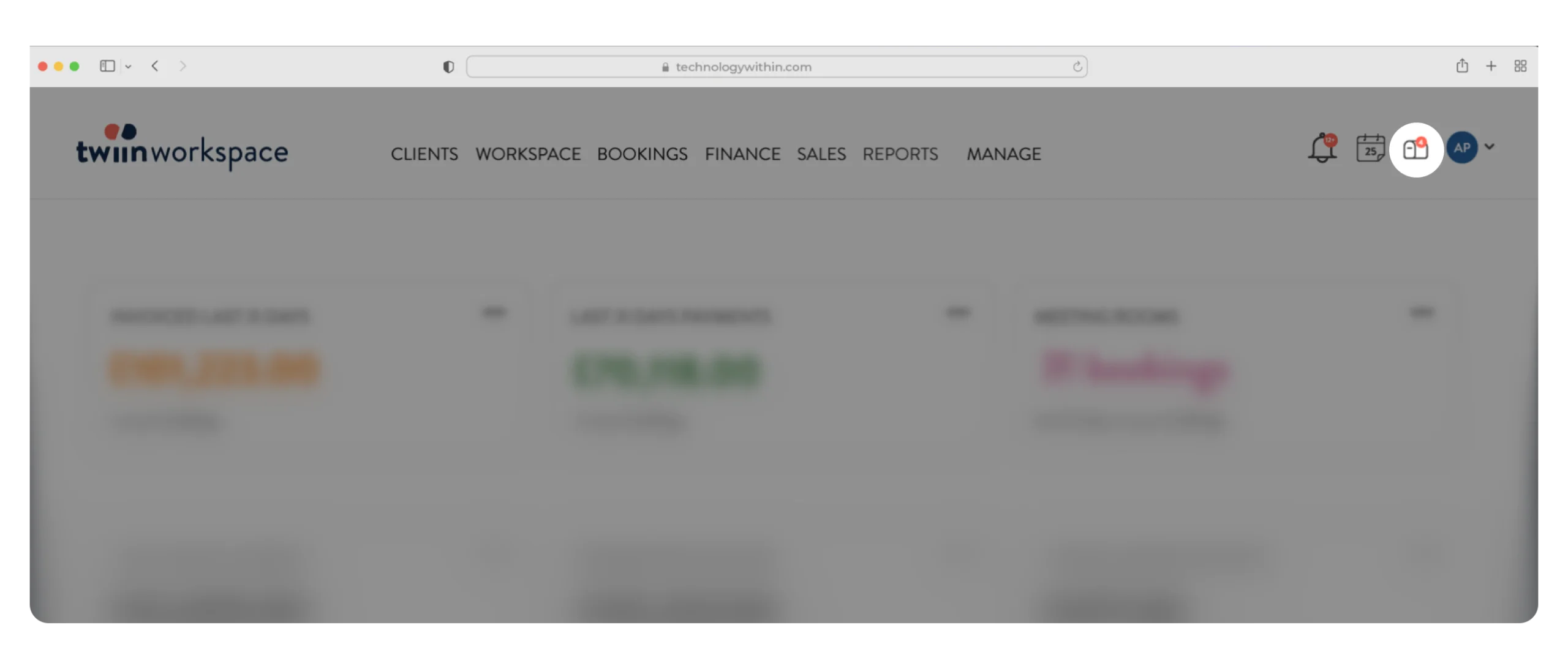
Icon Menu
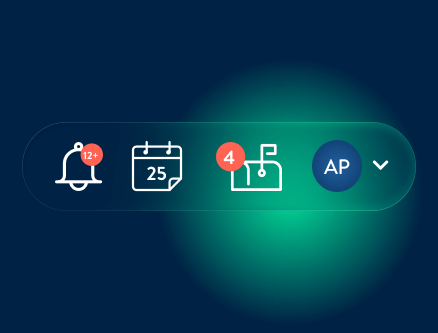
Notifications bell
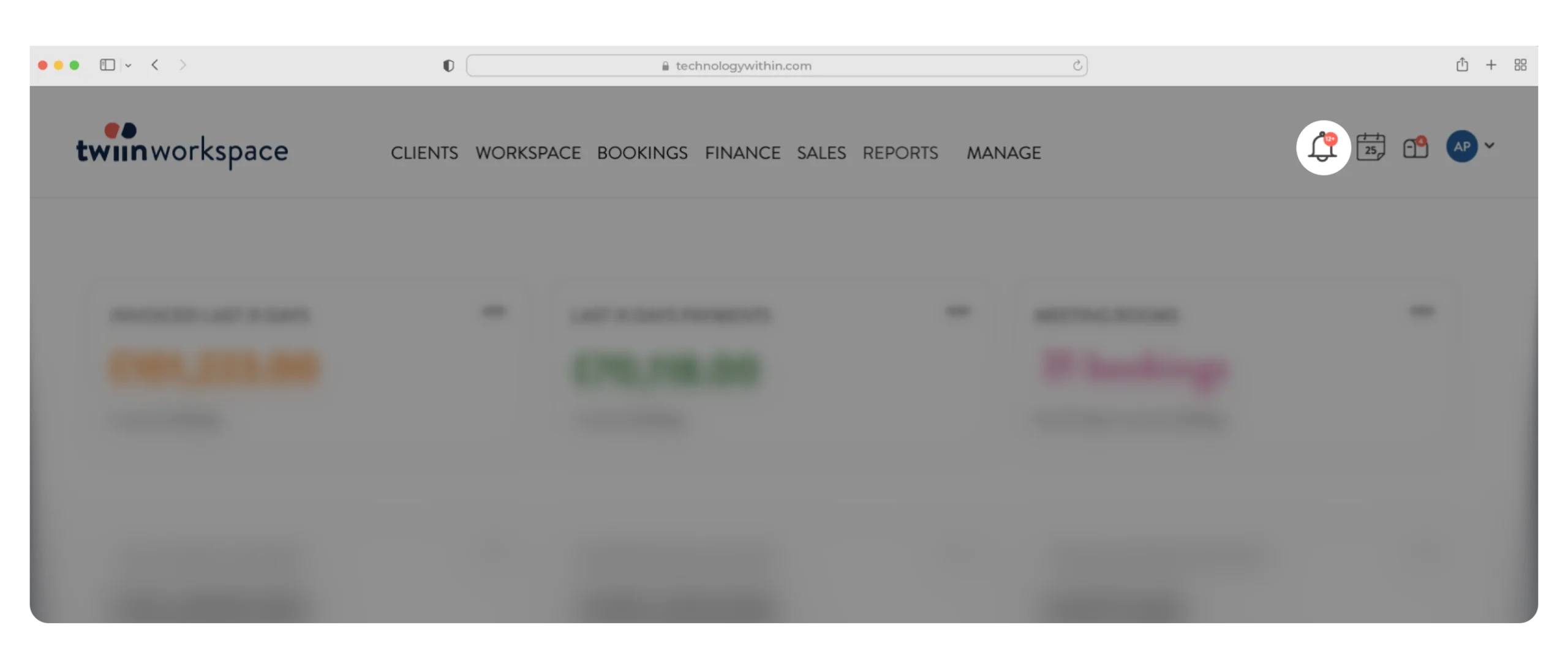
All user notifications will appear under the notification’s icon with a counter when there are new ones.
Notifications include sales updates to assigned leads, viewing invitation responses, and leads waiting to be imported from twiinsales. The same notification bell is shown in twiinsales.
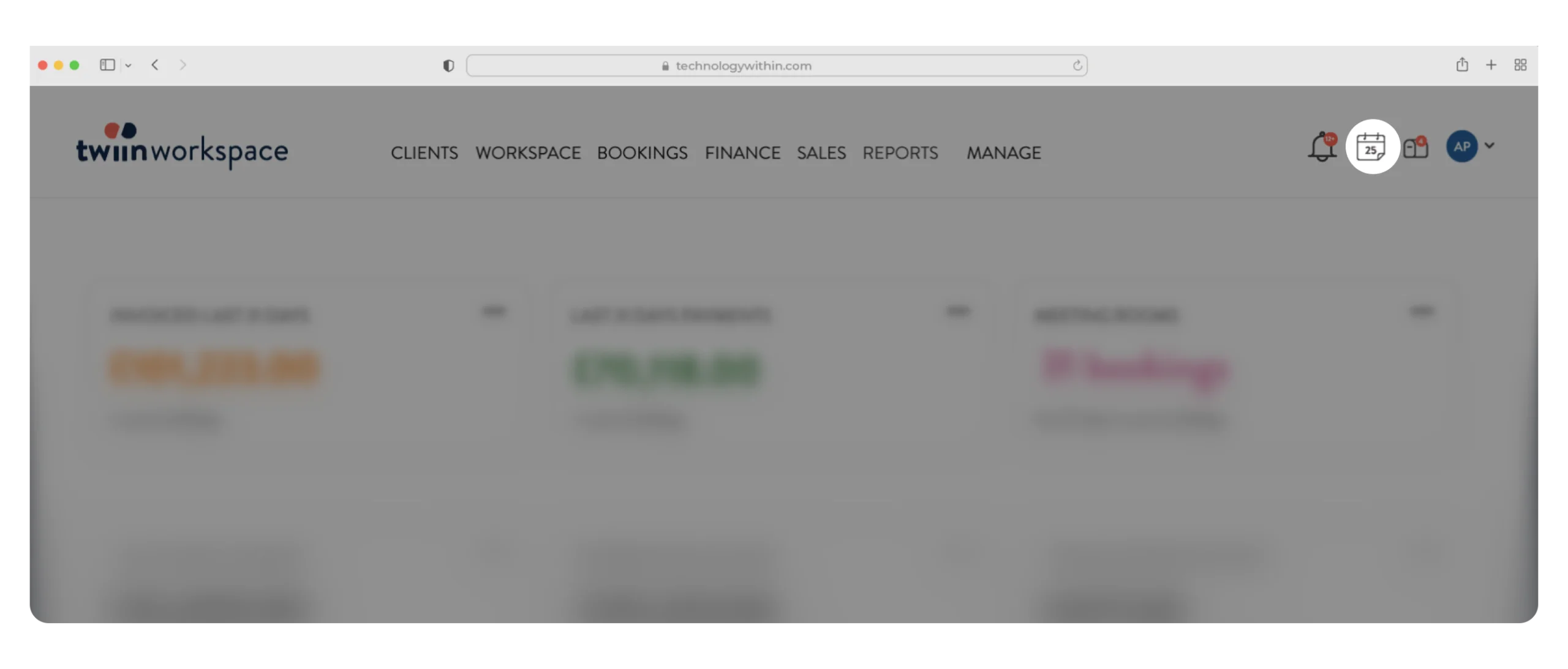
Activities calendar
Mailbox
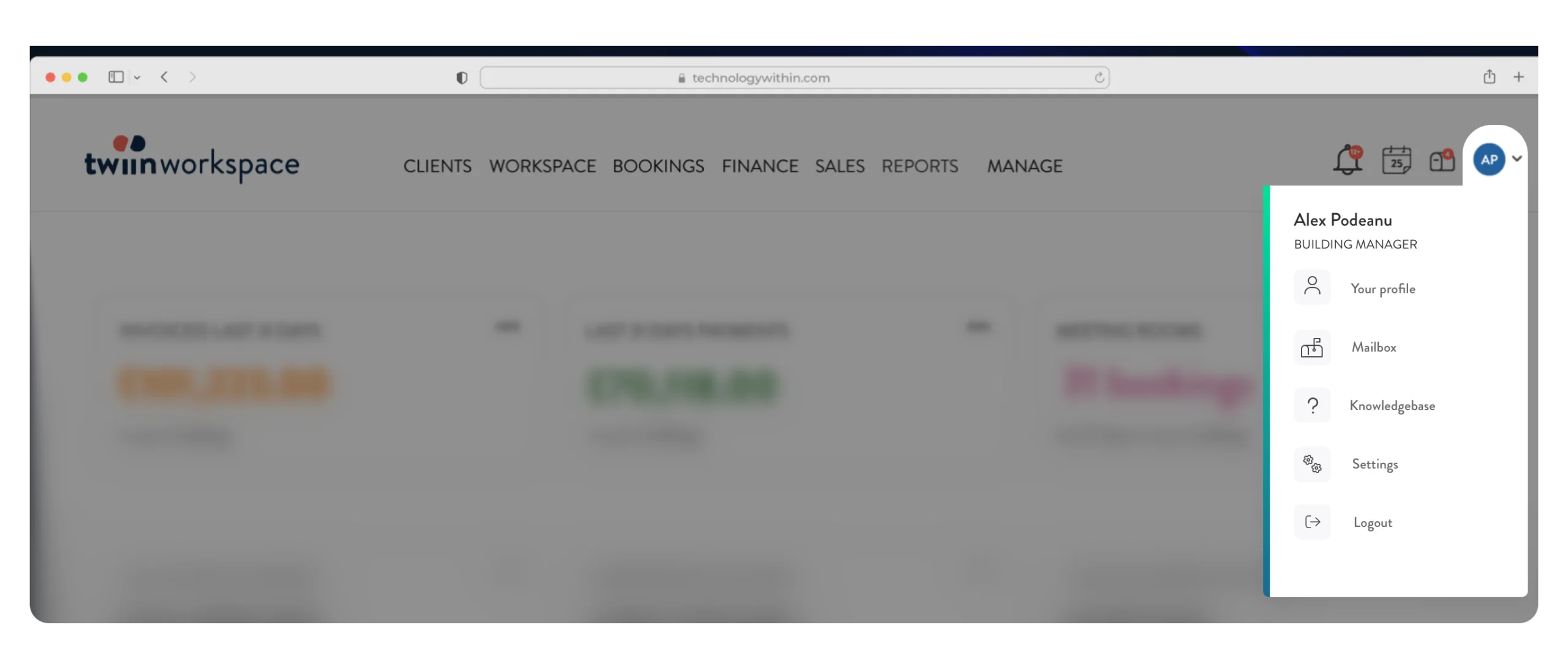
Profile